Learn React Through Game Development: Build a Chess Clock
SkillVeris Team
Content Team
A chess clock compresses React's most important concepts — useState, useEffect with cleanup, and conditional rendering — into one small, satisfying project.
In this guide, you'll learn:
- Chess generates rich state that maps perfectly onto multiple useState variables and a state-dependent useEffect interval.
- Returning a cleanup function from useEffect is the single most important habit for avoiding runaway timer bugs.
- The functional update form setState(prev => prev - 1) keeps interval logic free of stale-closure bugs.
- Conditional rendering lets the same component swap entirely different UIs based on state, like the game-over screen.
1Why Chess Is Perfect for Learning React
Chess generates rich state: two independent timers, an active player, a running/paused status, and a game-over condition. These map perfectly onto React concepts — multiple useState variables, a useEffect interval that depends on state, conditional rendering for the end screen, and a clean one-way data flow.
Unlike a to-do app, the chess clock feels like a real, usable tool the moment it works. Beyond the clock, the same patterns power game UIs, real-time dashboards, and collaborative apps. Learn them here and they transfer everywhere.
2How a Chess Clock Works
A chess clock has two timers — one per player. When Player 1 makes their move, they tap their side of the clock, which stops their timer and starts Player 2's. A player who runs out of time loses, regardless of the board position.
Increment chess, common in online play, adds a small bonus per move (for example 3 seconds) when the player taps. Here's the state we need to track.
- whiteTime: seconds remaining for White.
- blackTime: seconds remaining for Black.
- activePlayer: 'white' or 'black'.
- isRunning: whether the clock is ticking.
- increment: seconds added per move.
3Project Setup
Scaffold the project with Vite — it's faster than Create React App and needs no extra packages, since this project uses only React core.
Replace the contents of src/App.jsx with everything that follows.
Create the app
# Create app with Vite (faster than Create React App)
npm create vite@latest chess-clock -- --template react
cd chess-clock
npm install
npm run dev4State Design
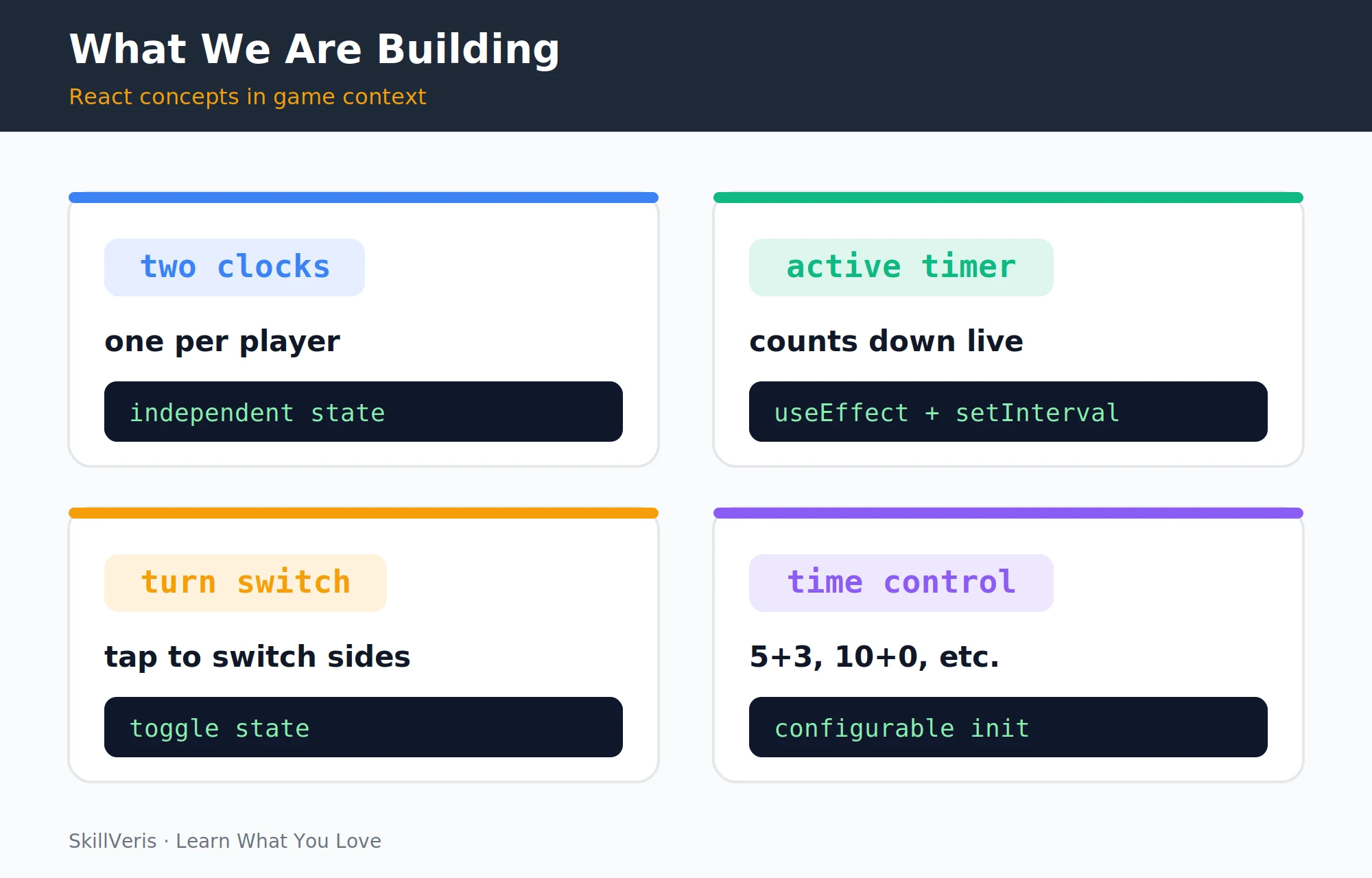
Four features — two clocks, an active timer, a turn switch, and configurable time controls — and the React concept each one teaches. The design starts from a set of time-control presets and a handful of useState hooks that hold the entire game state.
Each preset bundles a label, a starting time in seconds, and an increment. The component then derives its initial times from the selected preset.
Presets and state hooks
import { useState, useEffect, useCallback } from 'react';
const PRESETS = [
{ label: '1+0', time: 60, inc: 0 },
{ label: '3+2', time: 180, inc: 2 },
{ label: '5+3', time: 300, inc: 3 },
{ label: '10+0', time: 600, inc: 0 },
{ label: '15+10', time: 900, inc: 10 },
];
export default function App() {
const [preset, setPreset] = useState(PRESETS[2]); // 5+3
const [whiteTime, setWhiteTime] = useState(preset.time);
const [blackTime, setBlackTime] = useState(preset.time);
const [activePlayer, setActivePlayer] = useState('white');
const [isRunning, setIsRunning] = useState(false);
const [gameOver, setGameOver] = useState(false);5The Timer with useEffect
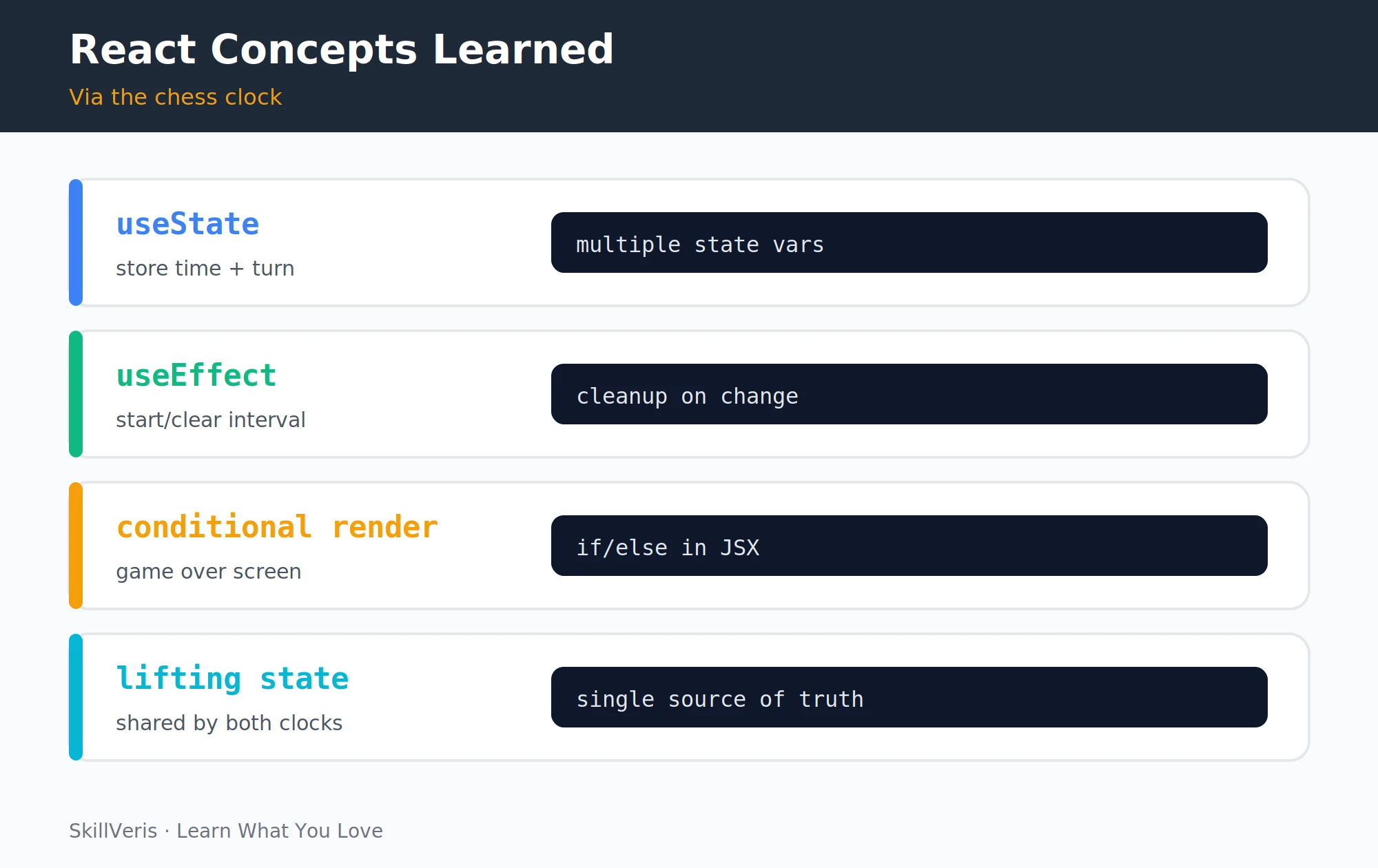
Four React patterns the chess clock teaches in a meaningful context: useState, useEffect cleanup, conditional rendering, and lifting state. The interval lives inside a useEffect that decrements whichever player's clock is currently active, ending the game when a clock hits zero.
The cleanup function () => clearInterval(interval) is crucial. Without it, every re-render creates a new interval while the old one keeps running — and the timer speeds up exponentially. This is the most common React bug beginners make with timers, and this project teaches you to avoid it.
The interval effect
useEffect(() => {
if (!isRunning || gameOver) return;
const interval = setInterval(() => {
if (activePlayer === 'white') {
setWhiteTime(prev => {
if (prev <= 1) { setGameOver(true); setIsRunning(false); return 0; }
return prev - 1;
});
} else {
setBlackTime(prev => {
if (prev <= 1) { setGameOver(true); setIsRunning(false); return 0; }
return prev - 1;
});
}
}, 1000);
return () => clearInterval(interval); // cleanup!
}, [isRunning, activePlayer, gameOver]);6Rendering the Two Clocks
A small fmt helper turns seconds into a mm:ss string for display. The JSX renders two clock panels — the Black panel rotated 180 degrees so the opposing player faces it — with the controls sandwiched in the middle.
Each clock gets an active class when it belongs to the running player, which drives the highlight styling. Clicking a clock calls handleClockPress with the corresponding colour.
Render output
const fmt = (s) => {
const m = Math.floor(s / 60);
const sec = (s % 60).toString().padStart(2, '0');
return `${m}:${sec}`;
};
return (
<div className="app">
{'/* Black player clock — rotated 180deg so they face it */'}
<div
className={`clock black ${activePlayer === 'black' && isRunning ? 'active' : ''}
`}
onClick={() => handleClockPress('black')}
style={{transform: 'rotate(180deg)'}}
>
<div className="time">{fmt(blackTime)}</div>
<div className="label">BLACK</div>
</div>
{'/* Controls in the middle */'}
<div className="controls">
<button onClick={reset}>Reset</button>
<button onClick={() => setIsRunning(r => !r)} disabled={gameOver}>
{isRunning ? 'Pause' : 'Resume'}
</button>
</div>
{'/* White player clock */'}
<div
className={`clock white ${activePlayer === 'white' && isRunning ? 'active' : ''}
`}
onClick={() => handleClockPress('white')}
>
<div className="time">{fmt(whiteTime)}</div>
<div className="label">WHITE</div>
</div>
</div>
);7Switching Turns
The handleClockPress handler drives the whole turn-taking flow. The first press starts the clock and hands the move to the other player; after that, only the active player can press their own clock.
When a player taps, the preset's increment is added to their time before the turn switches to their opponent. Wrapping it in useCallback keeps the handler's identity stable across renders.
handleClockPress
const handleClockPress = useCallback((player) => {
if (gameOver) return;
// First press starts the clock
if (!isRunning) {
setIsRunning(true);
setActivePlayer(player === 'white' ? 'black' : 'white');
return;
}
// Only active player can press their own clock
if (player !== activePlayer) return;
// Add increment to the player who just moved
if (player === 'white') setWhiteTime(t => t + preset.inc);
else setBlackTime(t => t + preset.inc);
// Switch to the other player
setActivePlayer(player === 'white' ? 'black' : 'white');
}, [isRunning, activePlayer, gameOver, preset.inc]);8Game Over Detection
When the game ends, the component returns a completely different JSX tree — a game-over overlay announcing the winner with a Play Again button. The winner is simply whichever player's clock didn't hit zero.
This is conditional rendering: returning a different UI when the game ends is one of the most powerful patterns in React, letting the same component render different views based on state.
Game over overlay
// Game over overlay
if (gameOver) {
const winner = whiteTime === 0 ? 'Black' : 'White';
return (
<div className="game-over">
<h1>{winner} wins on time!</h1>
<button onClick={reset}>Play Again</button>
</div>
);
}9Controls: Start, Pause, Reset
Reset is simply setting all state back to its initial values — restoring both times to the preset, switching to White, and clearing the running and game-over flags.
The useCallback wrapping memoises the function so its identity doesn't change on every render — important when it's passed as a prop to a child component.
The reset callback
const reset = useCallback(() => {
setWhiteTime(preset.time);
setBlackTime(preset.time);
setActivePlayer('white');
setIsRunning(false);
setGameOver(false);
}, [preset.time]);10Configurable Time Controls
A row of preset buttons lets the player pick a time control before the game starts; it disappears once the clock is running. Selecting a preset updates the active preset and resets both clocks to its starting time.
The map over the PRESETS array is the standard React pattern for rendering lists — the same pattern used in every product catalogue, feed, and menu.
Preset selector
// Preset selector (shown before game starts)
{!isRunning && !gameOver && (
<div className="presets">
{PRESETS.map(p => (
<button
key={p.label}
className={preset.label === p.label ? 'active' : ''}
onClick={() => { setPreset(p); setWhiteTime(p.time); setBlackTime(p.time); }}
>
{p.label}
</button>
))}
</div>
)}11Styling for a Real Board-Game Feel
A little CSS gives the clock its real board-game aesthetic: a full-height flex column, large rounded clock panels, and a glowing amber border on the active player's side.
The time display uses a fluid clamp() font size so it reads well on any screen, and the game-over view fills the viewport with a centred, high-contrast layout.
💡Pro Tip
Use clamp(3rem, 12vw, 7rem) for the time display font size. It scales with viewport width on mobile without any media queries — the chess clock is then playable on any screen, from a phone to a large monitor.
Key CSS
.app { display:flex; flex-direction:column; height:100vh;
background:#1a1a2e; gap:8px; padding:8px; }
.clock { flex:1; display:flex; flex-direction:column;
align-items:center; justify-content:center;
border-radius:20px; cursor:pointer; transition:background .2s;
background:#16213e; }
.clock.active { background:#0f3460; border:3px solid #f59e0b; }
.time { font-size:clamp(3rem,12vw,7rem); font-weight:800;
font-family:monospace; color:#fff; letter-spacing:4px; }
.clock.active .time { color:#f59e0b; }
.game-over { display:flex; flex-direction:column; align-items:center;
justify-content:center; height:100vh; background:#0f172a;
color:#fff; gap:24px; }12Key Takeaways
These are the patterns worth carrying into every React project you build next.
- Always return a cleanup function from useEffect when you create an interval or subscription — forgetting this causes timer bugs that are hard to diagnose.
- Use the functional update form setState(prev => prev - 1) inside intervals to avoid stale-closure bugs.
- Conditional rendering (if (gameOver) return <GameOver />) switches between entirely different UIs based on state.
- Game projects make React patterns stick because the feedback is immediate and satisfying.
13What to Learn Next
Keep building games with React to deepen the patterns you've just learned.
- Extend the clock: add a move counter, sound effects (new Audio()), and a history of each player's move times.
- React Hooks Explained — a deep dive into every hook used here.
- TypeScript for Beginners — add types to the game state and preset objects.
14Frequently Asked Questions
Why does my timer drift or speed up after a few moves? You're not clearing the previous interval when the effect re-runs. Make sure your useEffect returns () => clearInterval(interval). Without the cleanup, each render creates a new interval while the old ones keep running — exponential drift.
Why use useCallback for handleClockPress? Without useCallback, the function is recreated on every render with a new reference. If you later pass it to a child component wrapped in React.memo, the child would re-render unnecessarily on every parent render. It's not strictly necessary here, but it's the correct habit.
Can I make this into a Progressive Web App so it works offline on mobile? Yes. Vite has a PWA plugin (vite-plugin-pwa) that adds a service worker and web manifest with minimal configuration. A chess clock is a perfect PWA candidate — it needs no network once loaded.
What other game projects teach React well? A Wordle clone (string manipulation + conditional styling), Minesweeper (2D array state + recursion), Snake (useEffect + keyboard events + game loop), and a Tetris clone (complex state machine). Each one teaches different React patterns in a fun context.
Related Reading
Get The Print Version
Download a PDF of this article for offline reading.
About the Publisher
SkillVeris Team
Content Team
We believe the best way to learn tech is through what you already love — sports, music, photography, and more.
View all postsRelated Posts
Never miss an update
Get the latest tutorials and guides delivered to your inbox.
No spam. Unsubscribe anytime.